In modern software development, one of the most common frustrations is simple yet costly: “It works on my machine, but not on yours.”
Docker was created to solve exactly this problem – and it has since become one of the most essential tools for developers, DevOps engineers, and companies worldwide.
In this guide, we’ll break down Docker in a simple, practical way so you can understand how it works and why it matters.
Contents
What is Docker?
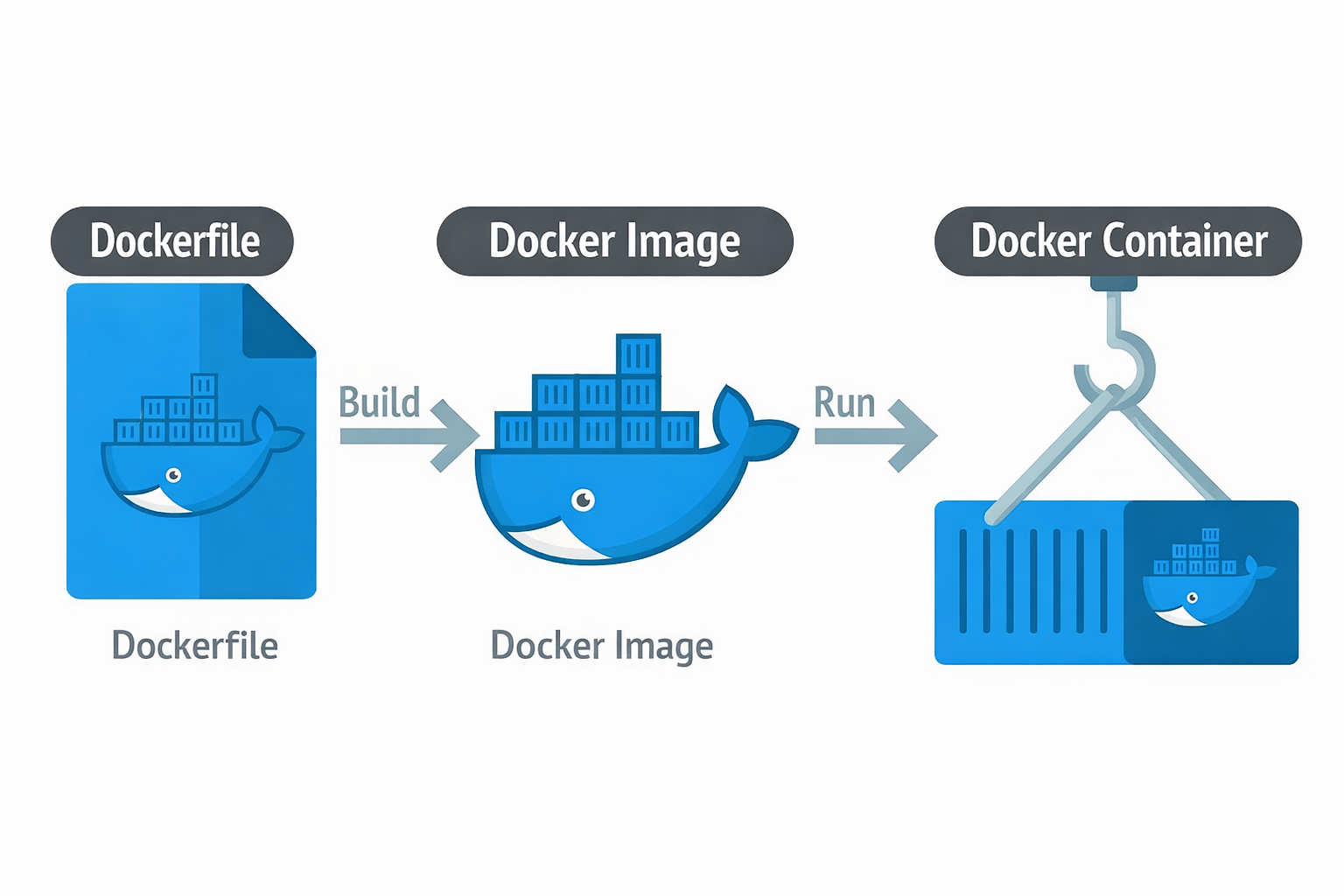
Docker is a platform that allows you to package and run applications inside containers.
A container is a lightweight, isolated environment that includes:
- Your application code
- Dependencies
- System libraries
- Configuration
This ensures your application runs the same way everywhere – on your laptop, your coworker’s system, or in production.
Why Do We Need Docker?
Before Docker, developers often faced issues like:
- Applications breaking on different machines
- Dependency conflicts between projects
- Time-consuming setup processes
- Unexpected failures after system updates
These problems occur because applications depend on more than just code – they rely on the entire system environment.
Docker solves this by packaging everything your app needs into one container.
Containers vs Virtual Machines
A common comparison is between containers and virtual machines (VMs).
| Feature | Containers | Virtual Machines |
|---|---|---|
| Size | Small (MBs) | Large (GBs) |
| Speed | Fast startup | Slow startup |
| OS | Shared | Separate OS |
| Performance | Near-native | Overhead |
👉 Containers are faster, lighter, and more efficient.
Key Concepts in Docker
Images
- Blueprints for containers
- Define what goes inside (code, dependencies, commands)
Containers
- Running instances of images
- You can run multiple containers from one image
Think of it like:
- Image = Recipe
- Container = Cooked dish
Basic Docker Commands
Here are a few essential commands to get started:
# Run a container
docker run hello-world

# Download an image
docker pull nginx

# List containers
docker ps        # running
docker ps -a     # all

# View logs
docker logs <container_id>

# Stop a container
docker stop <container_id>
Networking & Port Mapping
By default, containers are isolated and not accessible from your system.
To access them, you need port mapping:
docker run -p 80:80 nginx
This maps:
- Host port → Container port
Persistent Storage
Containers are temporary by design. When they stop, data is lost.
Solutions:
1. Volumes (Recommended for production)
- Managed by Docker
- Safe and portable
2. Bind Mounts (Best for development)
- Link local files to container
- Easy to edit and test
Debugging Containers
Sometimes you need to inspect what’s happening inside a container:
docker exec -it <container_id> sh
This opens a terminal inside the container so you can:
- Explore files
- Run commands
- Debug issues
Building Your Own Image
You can create custom images using a Dockerfile:
FROM nginx
COPY ./static /usr/share/nginx/html
Then build it:
docker build -t my-image .
Docker Layers & Optimization
- Each Dockerfile step creates a layer
- Layers are cached → faster builds
Best Practices:
- Order commands carefully
- Minimize changes to reuse cache
- Avoid storing sensitive data
Multi-Stage Builds
Multi-stage builds help you:
- Remove unnecessary files
- Reduce image size
- Improve security
Separate:
- Build environment
- Production environment
Docker Compose (Multi-Container Apps)
For real-world apps, you’ll need multiple services (frontend, backend, database).
Docker Compose lets you manage everything in one file:
services:
  frontend:
    build: ./frontend
    ports:
      - "80:80"

  backend:
    build: ./backend
    ports:
      - "8000:8000"
Run everything with:
docker compose up
Managing Secrets
Never store sensitive data in code.
Instead, use .env files:
DB_USER=root
DB_PASS=123
And make sure:
.envis in.gitignore
Sharing Images (Docker Hub)
You can publish your images so others can use them:
docker tag my-image username/repo:tag
docker login
docker push username/repo:tag
Deploying Docker Apps
You can run Docker:
- On your own server
- On cloud platforms (AWS, GCP, etc.)
There’s no single best solution – it depends on your needs.
Final Thoughts
Docker has transformed how applications are built and deployed by making environments:
- Consistent
- Portable
- Scalable
If you’re a developer, learning Docker is no longer optional – it’s a core skill.
What’s Next?
If you’re just getting started:
- Install Docker
- Run your first container
- Try building a simple app
The best way to learn Docker is by doing.
Would you like a follow-up article on:
- “Docker for absolute beginners (hands-on project)” or
- “Deploying Docker apps to the cloud”?